Map Editor
Map Editor
Map Editor is the screen the editor opens on — the map itself in the centre, the project's maps to the left, and the tools that act on them to either side.
What the map responds to is decided by the context mode on the first toolbar: tile, entity, doodad, prefab, fence, lighting or battles. The second toolbar then offers only the drawing tools that mode supports, so it changes as the mode does. Every button on all three toolbars is listed with the toolbar it belongs to below.
The map draws in two dimensions or three, switched from the control at the top right of the map area. That control also chooses which projection 3D uses — perspective or orthographic.
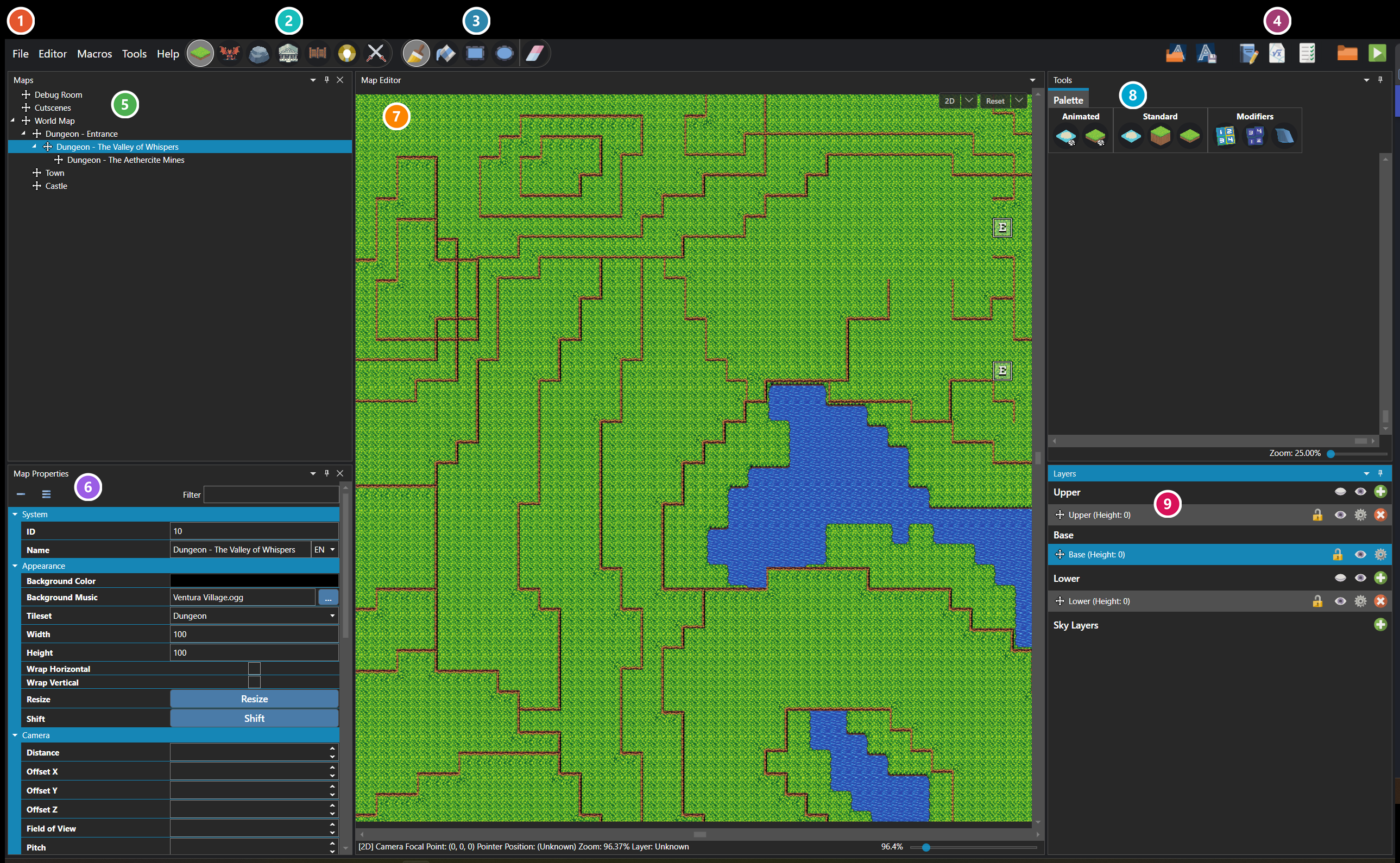
 Menu Bar
File, Editor, Macros, Tools and Help. Detailed under Menu Bar below.
 Context Mode
What the map is being edited as. Detailed under Context Mode below.
 Drawing Tools
The tools the active context mode offers. Detailed under Drawing Tools below.
 Project Tools
Actions on the project rather than on the open map. Detailed under Project Tools below.
 Map Hierarchy
Every map in the project, nested as a tree. Selecting one opens it in the map view and fills Map Properties below with its settings.
 Map Properties
The selected map's own settings, in ten collapsible groups. The grid is far taller than the pane and scrolls. Its fields are documented under Map.
 Map
Map
The map as it will be drawn in game. The control at its top right switches between two dimensions and three, and the scene information along the bottom reports where the camera is looking.
 Tools
What the active context mode gives to work with. This is tile mode, so the pane is the tileset's palette; every other mode replaces it entirely — see Map Mode.
 Layers
Upper, Base and Lower, each holding its own layers at their own heights, plus the sky layers beneath them.
Menu Bar

The five menus run across the top of the editor. Every entry on each of them, with its keyboard shortcut where it has one, is listed under Menus.
Two are not fixed lists. Macros grows from whatever the project defines, and File grows Recents and Favorites submenus from the projects already opened and saved.
Context Mode

One mode is active at a time and it decides what the map responds to.
| Mode | Purpose | Shortcut |
|---|---|---|
| Tile | Edits the map in tile mode. | Ctrl+1 |
| Entity | Edits the map in entity mode. | Ctrl+2 |
| Doodad | Edits the map in doodad mode. | Ctrl+3 |
| Prefab | Edits the map in prefab mode. | Ctrl+6 |
| Fence | Edits the map in fence mode. | Ctrl+7 |
| Lighting | Edits the map in lighting mode. | Ctrl+4 |
| Battles | Edits the map's battle regions and focal points. | Ctrl+5 |
The shortcuts run Ctrl+1 to Ctrl+7 but do not follow the button order.
Drawing Tools
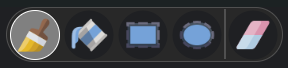
This strip changes with the context mode, offering only the tools that mode supports.
| Tool | Purpose | Shortcut |
|---|---|---|
| Brush | Draws one selection at a time. Tile, doodad and prefab modes. | Ctrl+Shift+1 |
| Fill | Fills a tile selection in a tile pattern. Tile mode only. | Ctrl+Shift+2 |
| Rectangle | Draws a tile selection in a rectangular pattern. Tile mode only. | Ctrl+Shift+3 |
| Ellipse | Draws a tile selection in an ellipsoid pattern. Tile mode only. | Ctrl+Shift+4 |
| Focal Point | Edits the map's battle focal points. Battles mode only. | Ctrl+Shift+1 |
| Region | Edits the map's battle regions. Battles mode only. | Ctrl+Shift+2 |
| Eraser | Erases with whichever tool is selected. Not offered in battles mode. | Ctrl+Delete |
Entity and Lighting offer no drawing tools at all, so the strip is empty in those modes.
Project Tools

These act on the project as a whole rather than on the map being edited.
| Button | Purpose |
|---|---|
| Open Project | Opens an existing project. |
| Save Project | Saves the current project. |
| Database | Opens the database window to configure most game-related variables. |
| Global Variables | Opens the global variables for configuration. |
| Global Switches | Opens the global switches for configuration. |
| Open Project Directory | Opens the current project directory. |
| Run Test Game | Runs a test version of the current game. |
Most of them have an equivalent entry on the File or Tools menu; the global variables and switches do not.
Map Hierarchy
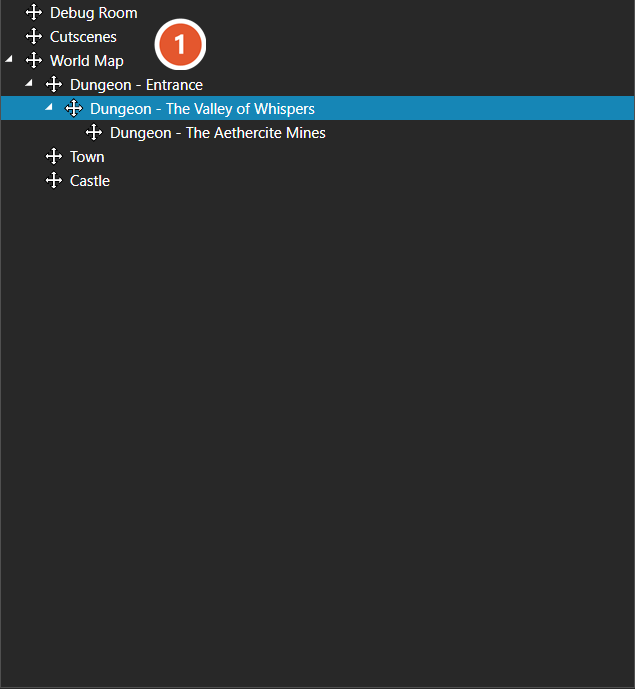
Maps
One row per map. Selecting a row opens that map and every other pane follows it.
Map Properties
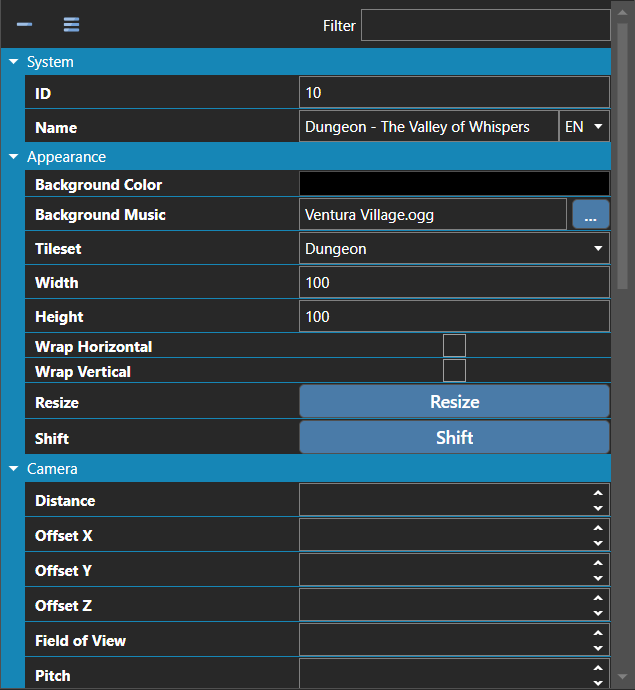
Map
2D Mode
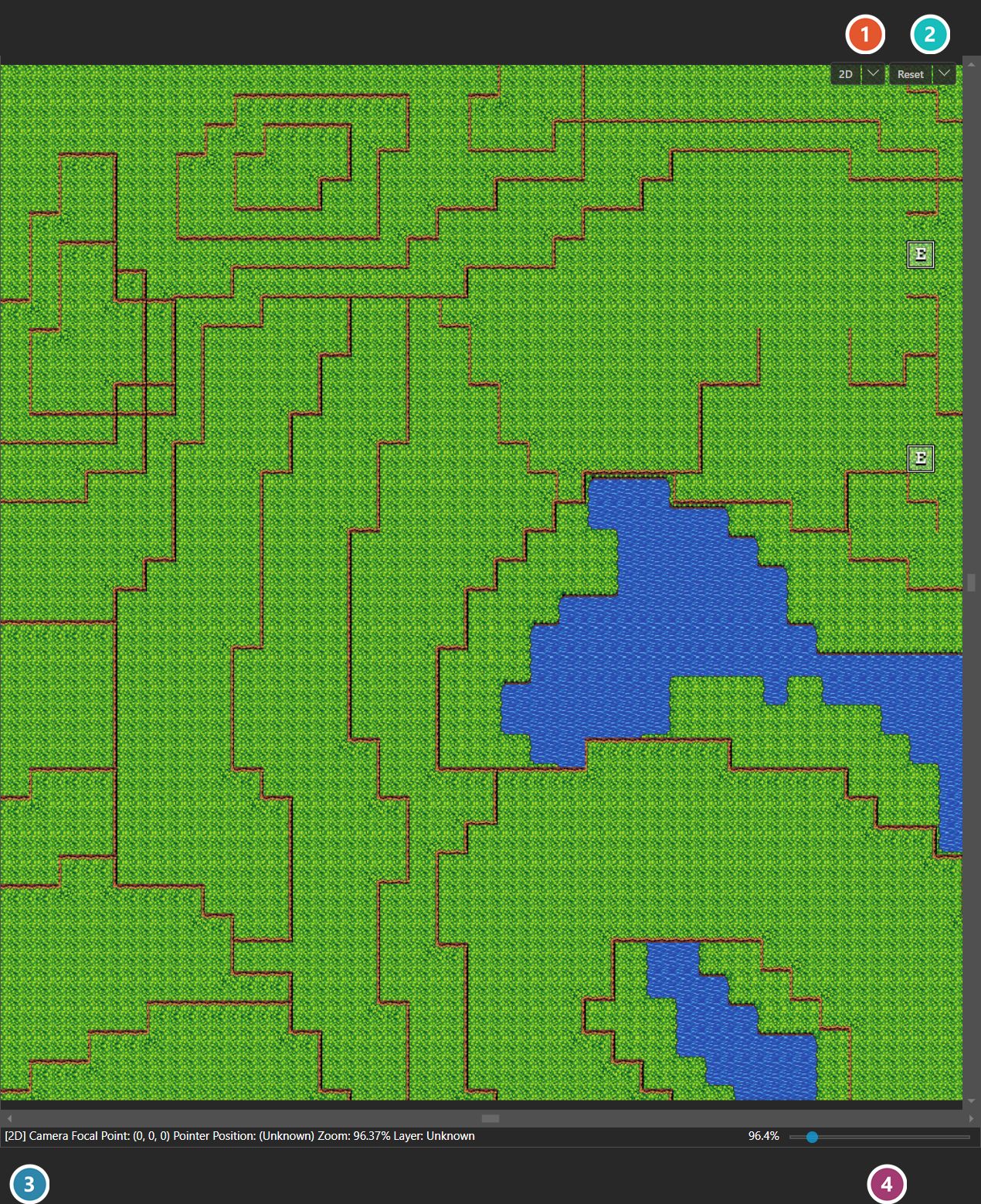
View Mode
Switches the map between two dimensions and three. Its dropdown chooses which projection 3D uses — Perspective or Orthographic.
Reset Camera
Returns the camera to the map's origin, along with the project's default rotation and distance. Its dropdown offers Center instead, which frames the middle of the map.
Scene Information
In two dimensions this reads the mode, the camera focal point, the pointer's position, the zoom and the active layer.
Zoom
How far the map is magnified. This corner carries a distance slider instead once the view is in three dimensions.
3D Mode
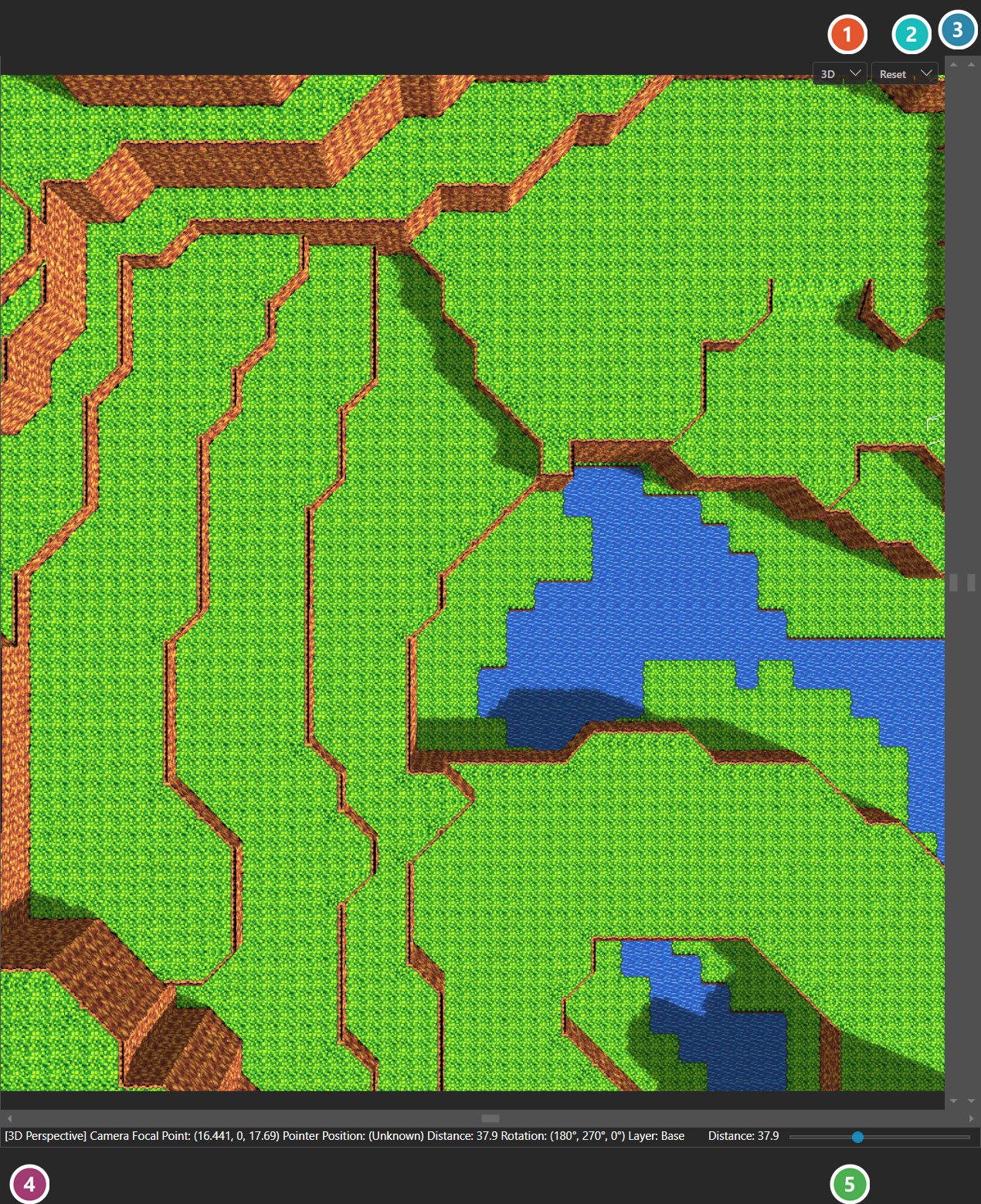
View Mode
Reads 3D once the map is in three dimensions, and its dropdown chooses the projection. This frame is Perspective, which the scene information names.
Reset Camera
Behaves as it does in two dimensions, restoring the origin, rotation and distance the project defines.
Elevation Scrollbar
A third scrollbar that only three dimensions has. The other two move the camera across the map, this one moves it up and down through elevation.
Scene Information
In three dimensions the zoom is replaced by the camera distance, and the camera rotation is reported in degrees.
Distance
How far the camera sits from its focal point, standing where the zoom slider sits in two dimensions.
Tools
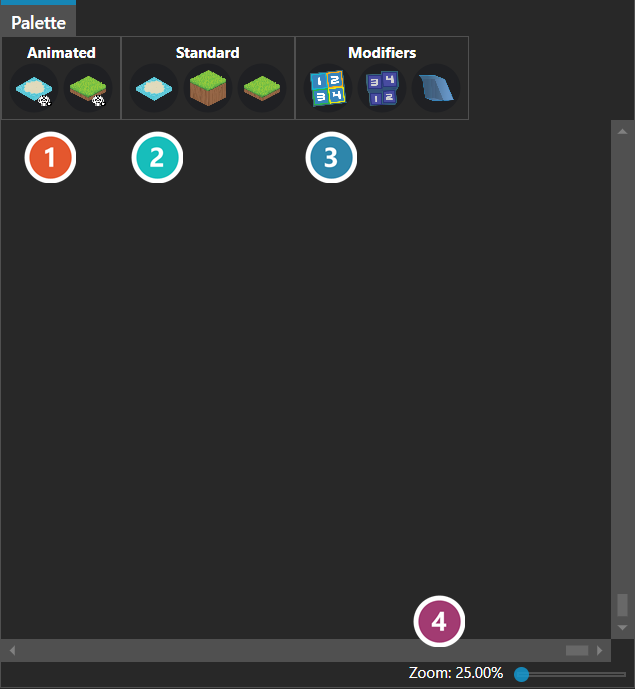
The pane shown here is tile mode's, and it is the only mode whose Tools pane is a palette. Each of the other six replaces these tabs with its own — see Map Mode.
Animated
Tiles that cycle through frames on their own once the game is running.
Standard
The ordinary tiles of the map's tileset, drawn exactly as they are authored.
Modifiers
Tiles that change how the tile beneath behaves rather than how it looks — see Tilesets.
Zoom
Scales the palette itself, which makes a dense tileset easier to pick from. It does not affect the map.
Layers
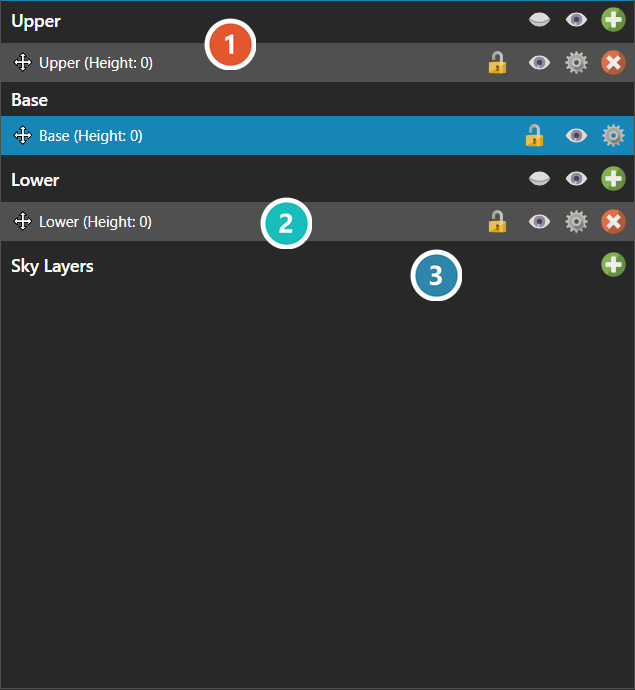
Groups
Upper, Base and Lower decide what draws in front of and behind the party. The buttons on each group's row add a layer to it.
Layers
One row per layer, labelled with the height it sits at. Drawing applies to the selected row, and the buttons along it lock, hide and configure that layer.
Sky Layers
Layers drawn above everything else, for cloud cover and similar effects that sit over the whole map.
Note: The dock is arrangeable, and the arrangement is saved with the project. Editor > Layout restores it or resets it to the default shown here.